
- Log into Laserfiche and find the client
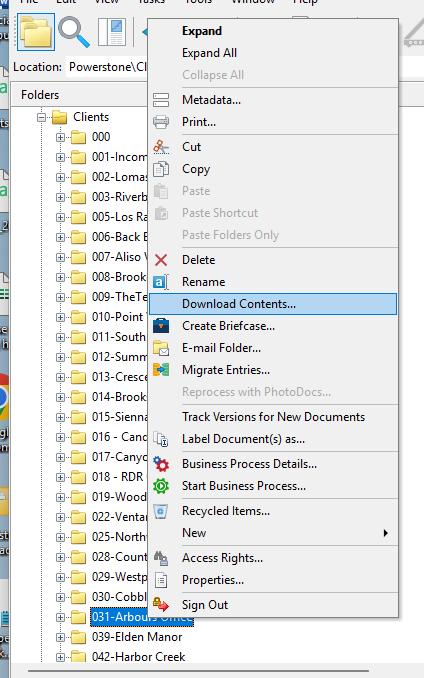
- Right click on the client on the left hand side and select “Download Contents”
- Leave everything as is and choose a location to download it to.
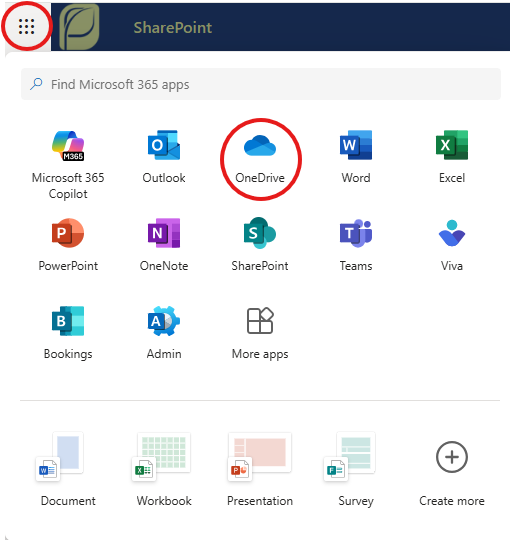
- Once complete, go to https://powerstonepm.sharepoint.com/ and navigate to OneDrive using the menu on the top left
- Navigate to the folder you want to upload the files to (Ex: Audit Financials)
- Drag and drop the downloaded folder into OneDrive and it will begin uploading
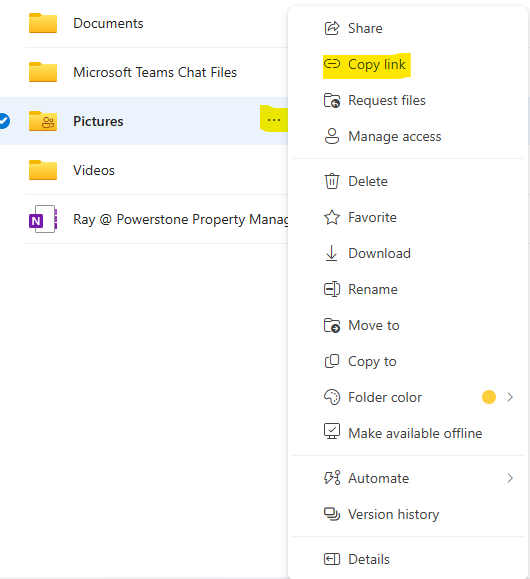
- Once complete, click on the 3 dots next to the folder you want to share and click on “Copy Link”
- You will get a notification that the link is copied.
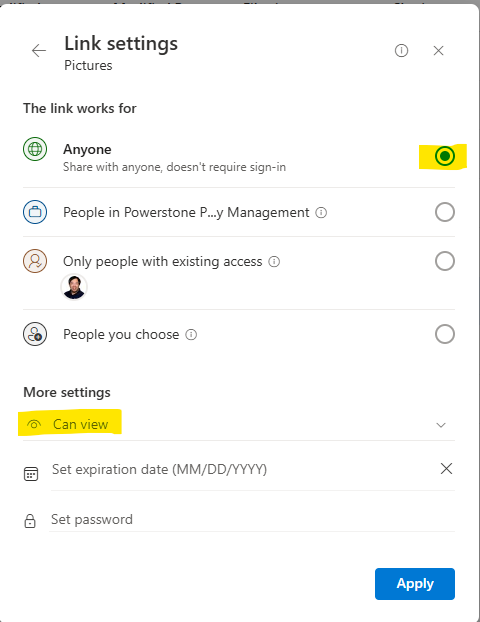
- Click on “Settings” and verify the link works for anyone and under more settings, it is set to “Can view”
Sharing Files from Laserfiche to OneDrive Print
Created by: Ray Lam
Modified on: Tue, 13 Jan, 2026 at 4:06 PM

Did you find it helpful? Yes No
Send feedbackSorry we couldn't be helpful. Help us improve this article with your feedback.