
- https://3cx.powerstonepm.com:5001/#/login
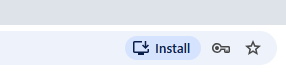
- Install the app using the link on the top right of your browser
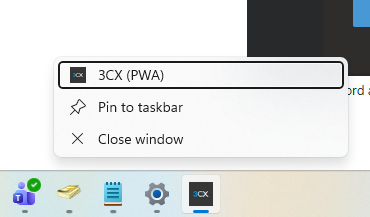
- Pin to taskbar
- Use the "Forgot password?" link
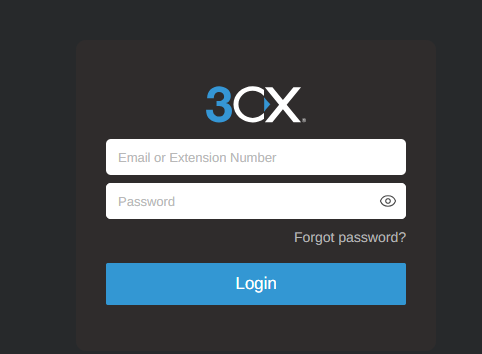
- Reset your password and login.
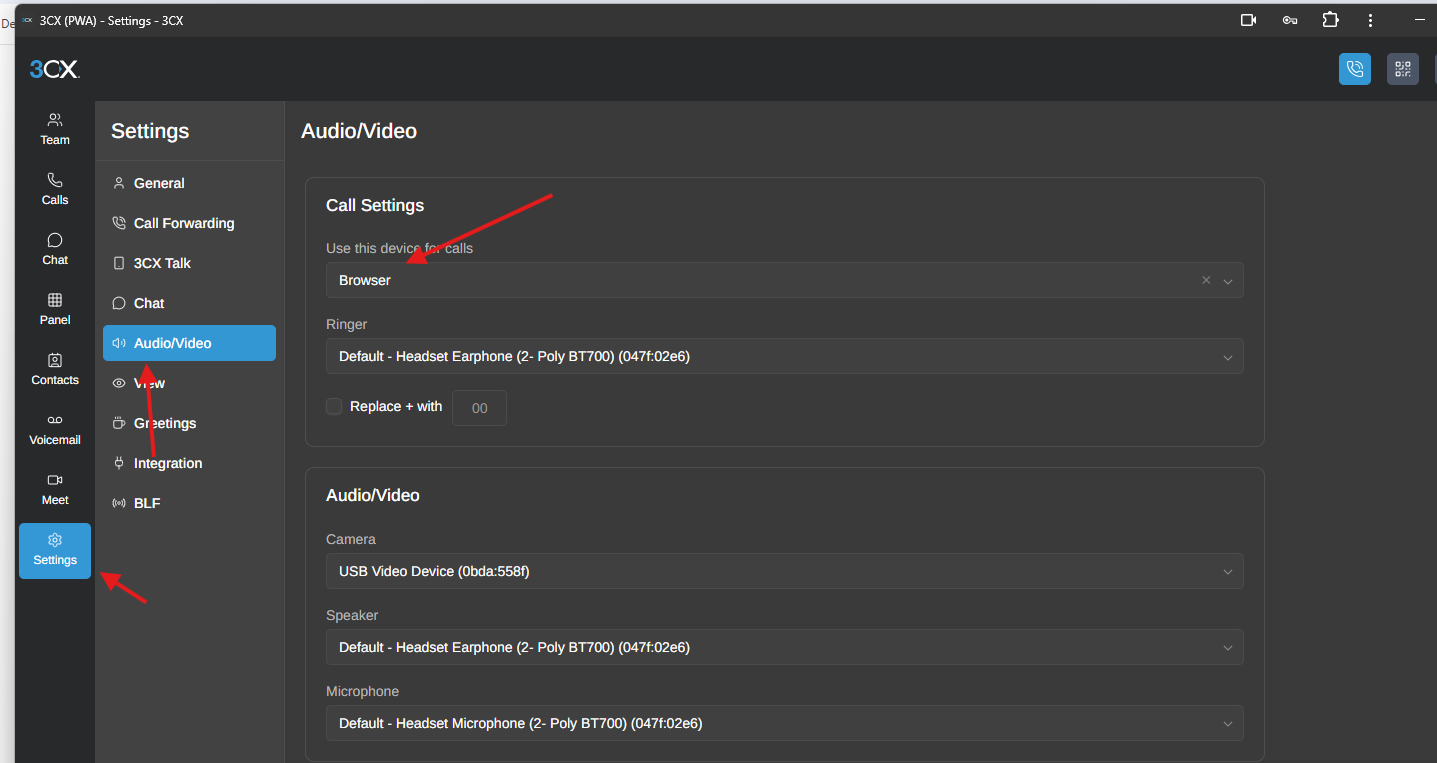
- Go to Settings, Audio/Video, and make sure "Use this device for calls" is set to Browser.
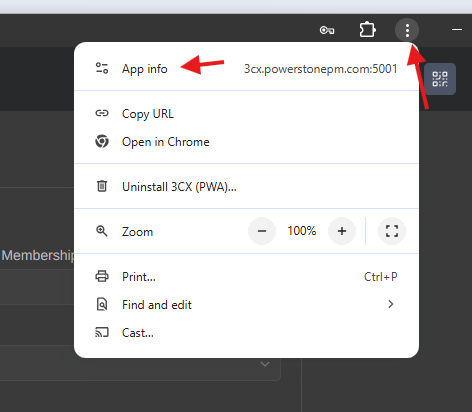
- Next, click on the three dots on the top right and open App info
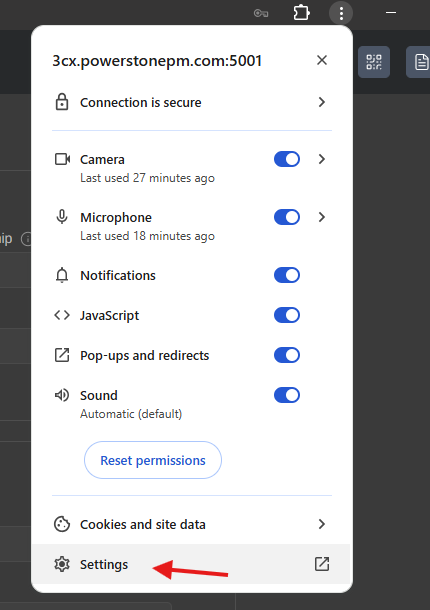
- Go to Settings
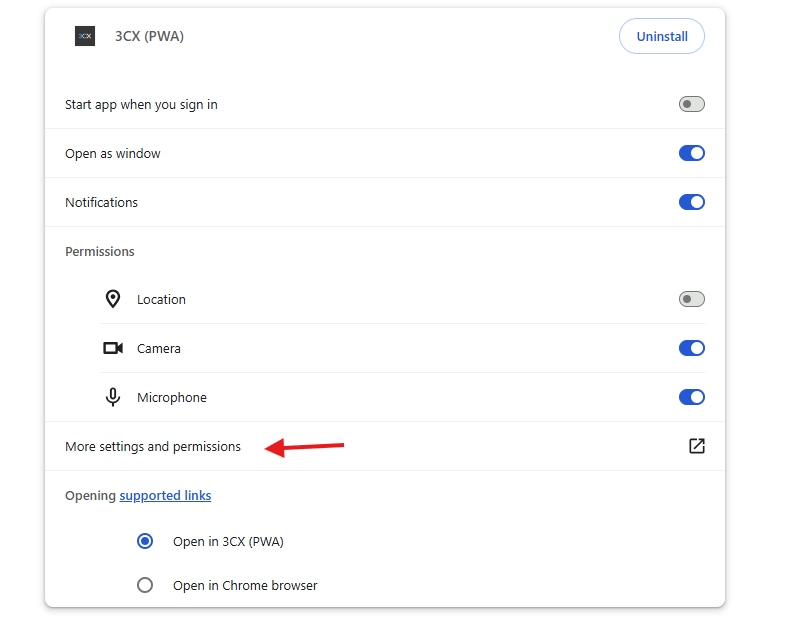
- More settings and permissions
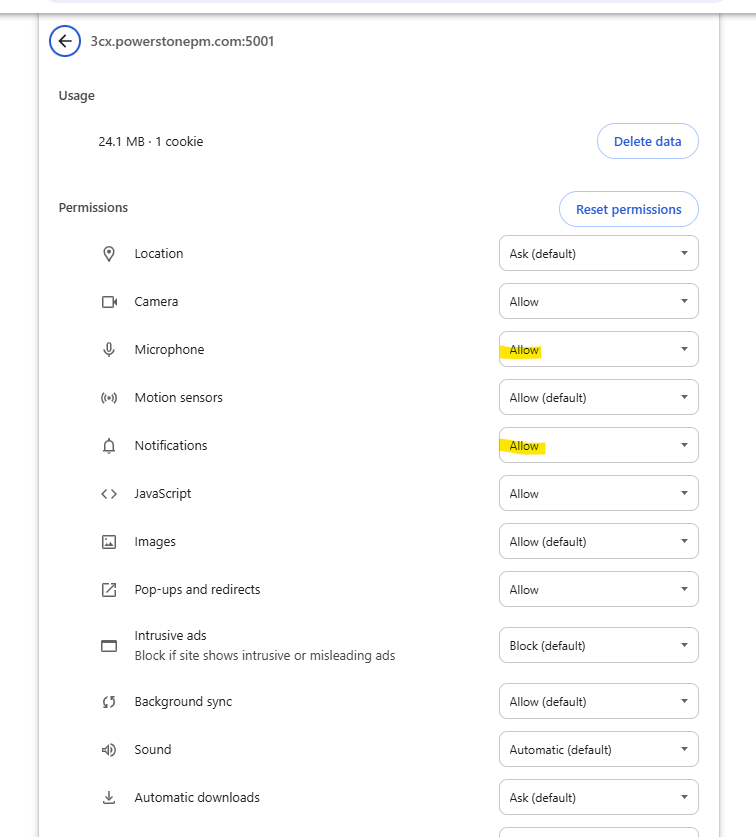
- Verify Microphone and Notifications are allowed
3CX set up Print
Created by: Ray Lam
Modified on: Thu, 10 Sep, 2026 at 1:09 PM
Did you find it helpful? Yes No
Send feedbackSorry we couldn't be helpful. Help us improve this article with your feedback.